How to save mobile data on Android and iPhone: the settings that work


If you buy data in bundles, you know the feeling: you top up, and a day later it is gone. Most of that data is not spent on what you chose to watch. It goes on apps working in the background, videos that download before you tap them, and updates you never asked for. These settings fix most of it. Menu names can differ slightly between phones; if you can’t find one, search for it in your Settings app.
1. Turn on Data Saver (Android)
Go to Settings > Network & internet > Data Saver and switch it on. Apps then stop using mobile data in the background; they can only do that on Wi-Fi. If one app must keep working in the background (maps, for example), add it under Unrestricted data.
2. Turn on Low Data Mode (iPhone)
Go to Settings > Cellular (or Mobile Data) > Cellular Data Options and turn on Low Data Mode. On 5G, it is under Data Mode. With two SIMs, tap the line you use first.
Low Data Mode pauses background app refresh, automatic downloads and backups, and iCloud Photos updates, and it lowers streaming quality. App Store auto-updates and video autoplay in the App Store are switched off.
3. Stop WhatsApp downloading everything
Group chats are the biggest hidden cost. In WhatsApp, open Settings > Storage and data. Under Media auto-download, tap When using mobile data and untick photos, audio, videos and documents. Media then only downloads when you tap it.
In the same screen, turn on Use less data for calls.
4. Set YouTube to Data saver
In the YouTube app, tap your profile picture, then Settings > Video quality preferences. Under mobile networks, choose Data saver. Videos play at lower quality on mobile data and stay as they are on Wi-Fi.
5. Turn on TikTok Data Saver
Open TikTok, go to your Profile, tap the menu (☰), then Settings and privacy > Data Saver, and switch it on.
6. Update apps on Wi-Fi only (Android)
App updates can be hundreds of megabytes. Open the Play Store, tap your profile picture, then Settings > Network preferences > Auto-update apps, and choose Over Wi-Fi only. On iPhone, Low Data Mode already stops automatic App Store updates on mobile data.
7. Download on Wi-Fi, watch later
If you have Wi-Fi at work, school or a café, use it for the heavy things: app updates, downloading films and backing up photos.
8. Check what is eating your data
Both Android and iPhone show how much mobile data each app used, under the network or mobile data section of Settings. Look at it once a week. The app at the top is often a surprise.
Choose apps that respect your bundle
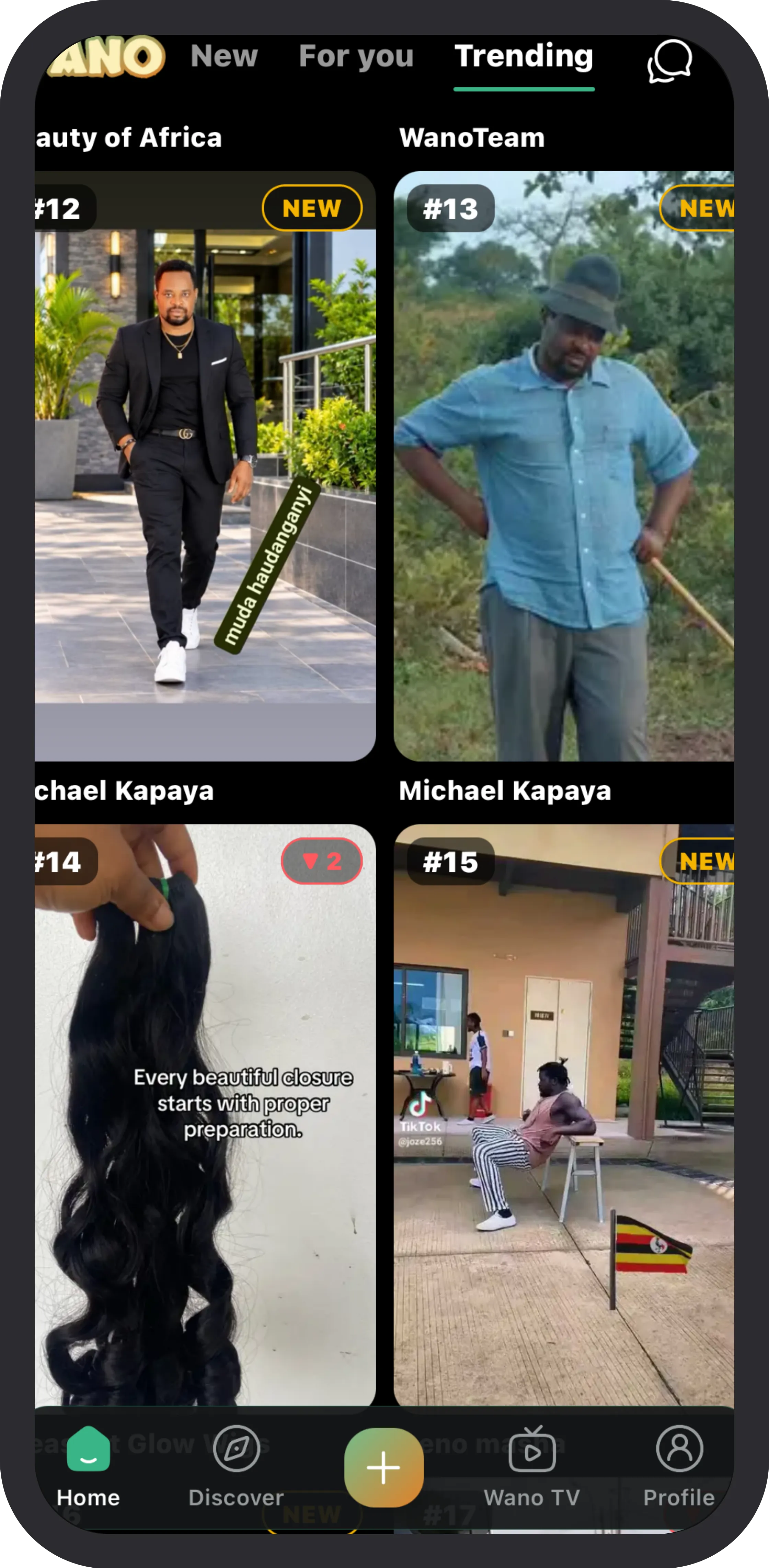
Some apps are simply lighter than others. Wano was built for mobile bundles: profile pictures arrive as small copies (about 10 KB instead of up to 2 MB), and each page of the feed is compressed to about 7 KB instead of 34 KB, so your data goes on the videos you actually watch. Read how.